# Agent

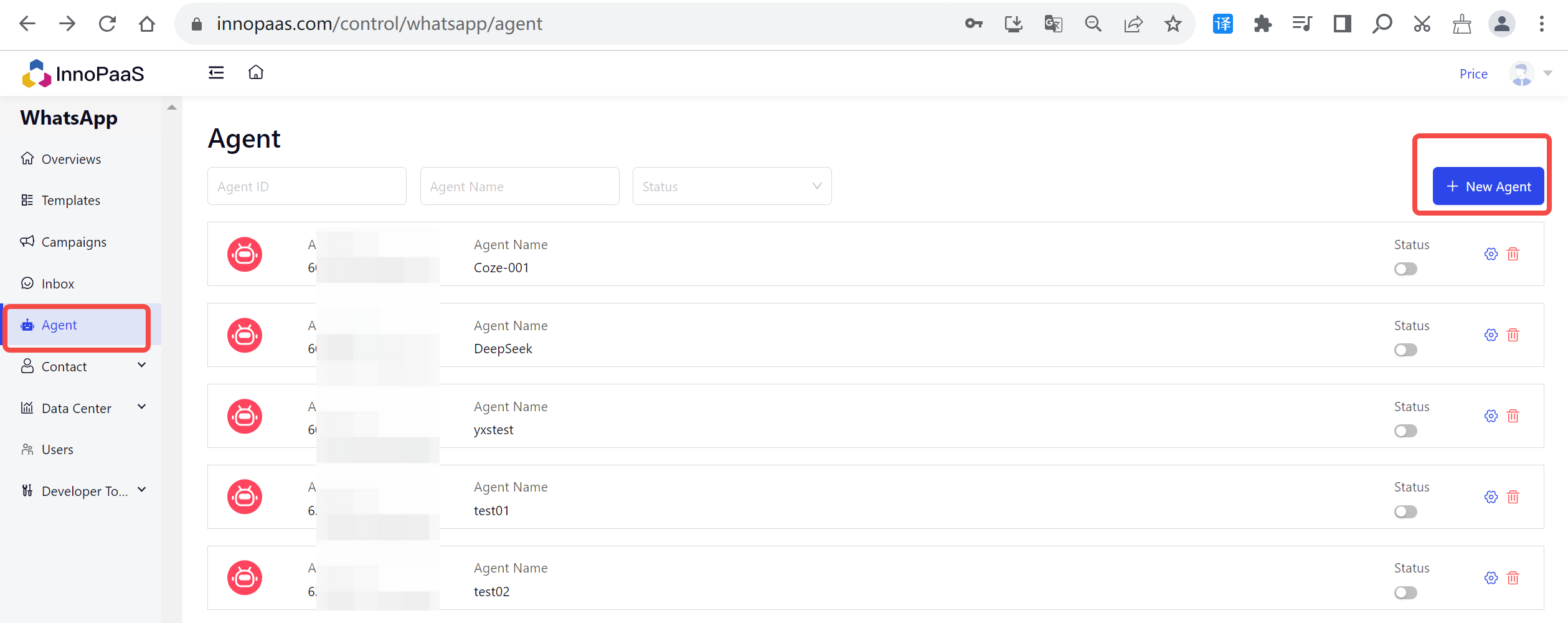
Click on New Agent

<figure><img src="https://2999845799-files.gitbook.io/~/files/v0/b/gitbook-x-prod.appspot.com/o/spaces%2FCJHnirvoJ8SyRLQfOW4Z%2Fuploads%2Fh6BaSwfd7McU7cfTbtMB%2Fimage.png?alt=media&#x26;token=384913df-9c2d-4654-ba5d-044e5c156c6c" alt=""><figcaption></figcaption></figure>

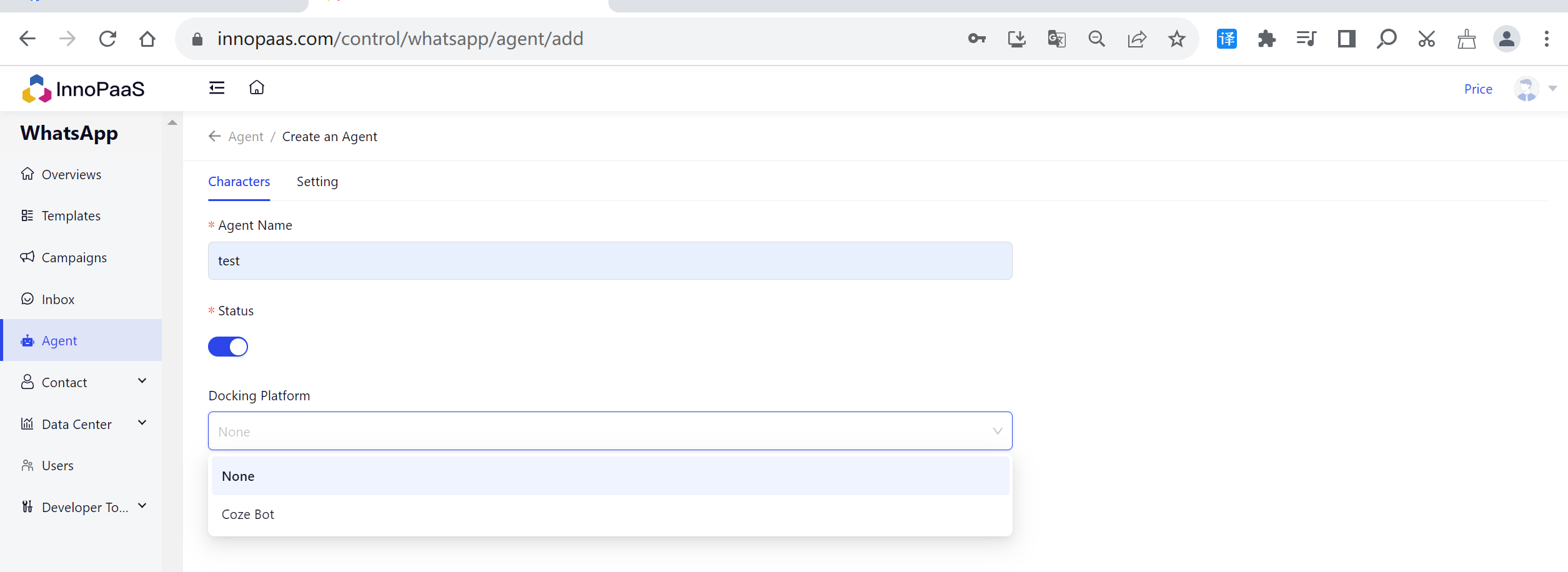
Enter the agent name and select the docking platform: coze， Fill in the parameters just obtained and save them.

<figure><img src="https://2999845799-files.gitbook.io/~/files/v0/b/gitbook-x-prod.appspot.com/o/spaces%2FCJHnirvoJ8SyRLQfOW4Z%2Fuploads%2FTGqiHUyaFP8uligL9wud%2Fimage.png?alt=media&#x26;token=8834660a-2a0e-4a42-a17c-4557a5d79015" alt=""><figcaption></figcaption></figure>

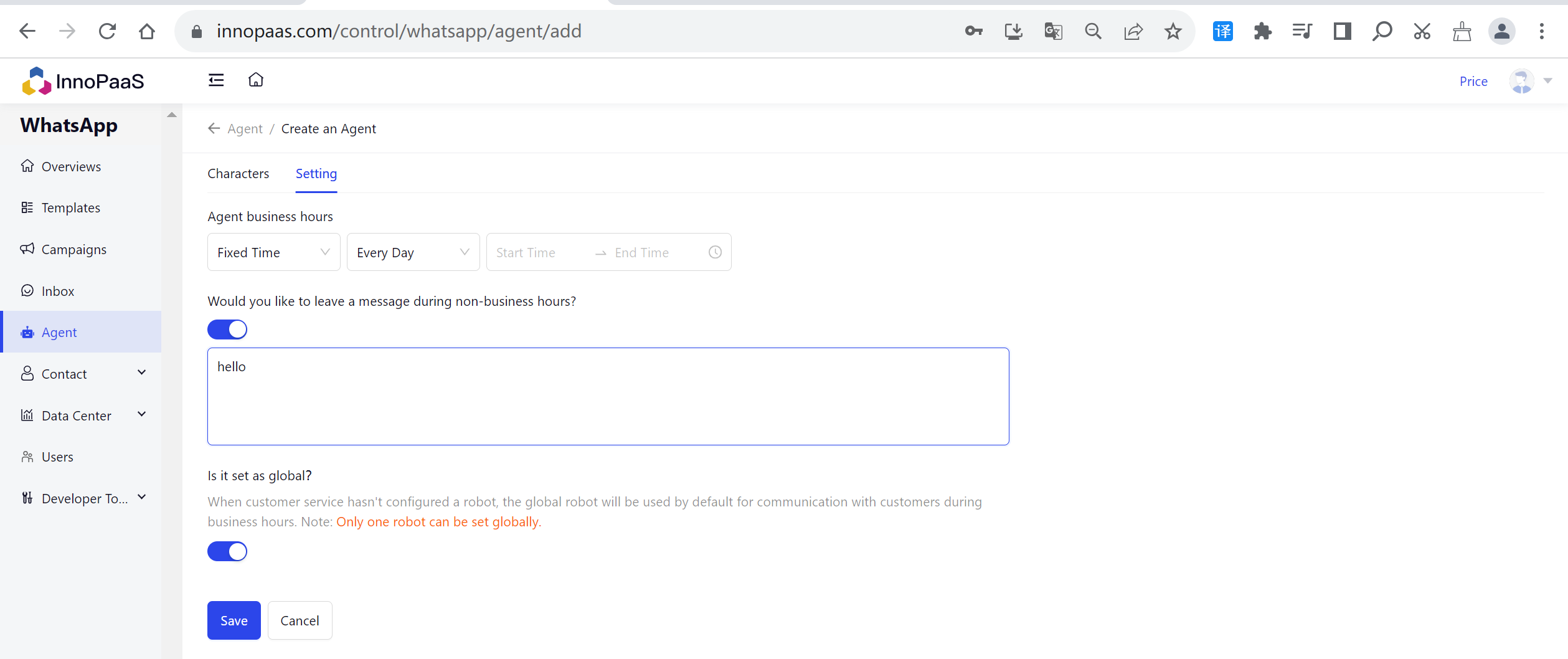
You can personalize the robot, such as business hours, non business hours reply language, etc.

<figure><img src="https://2999845799-files.gitbook.io/~/files/v0/b/gitbook-x-prod.appspot.com/o/spaces%2FCJHnirvoJ8SyRLQfOW4Z%2Fuploads%2FFFEV5YjXKsSpVyXT36ym%2Fimage.png?alt=media&#x26;token=1f27943b-80e3-4240-9ed3-5779d8d5731b" alt=""><figcaption></figcaption></figure>

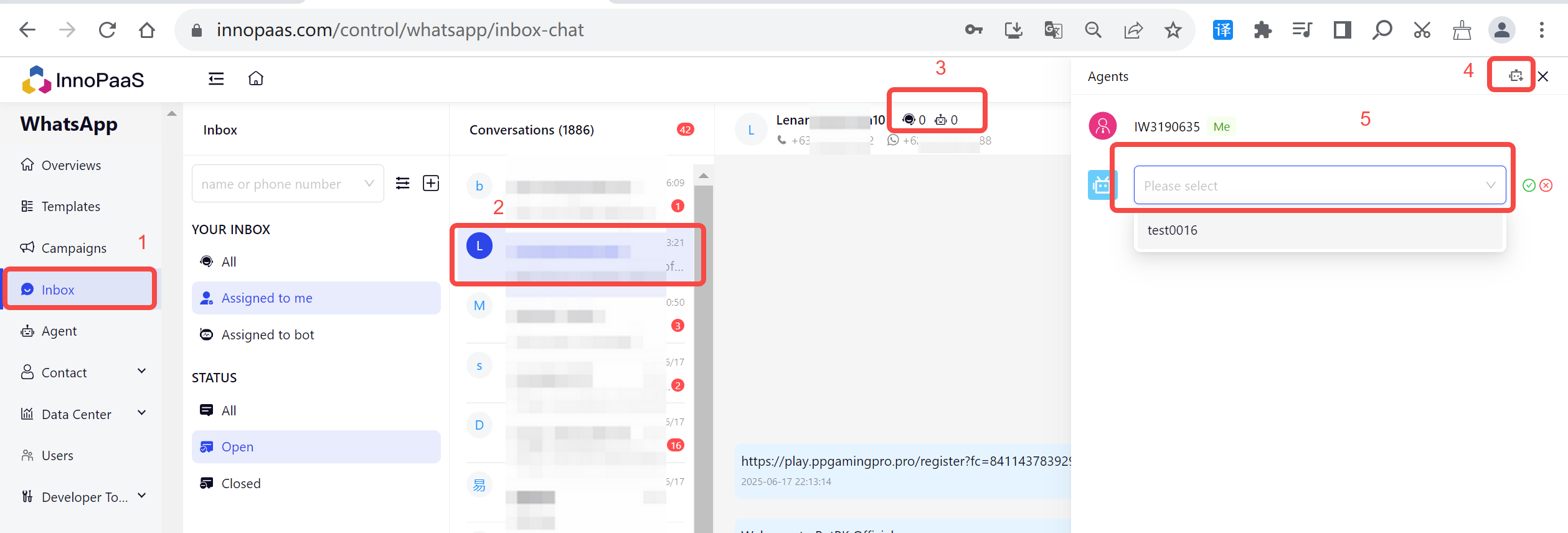
Start robot replyEnter the Inbox and click on the robot avatar to set a dedicated robot for the current conversation. If no robot is configured for the current session, the global robot will be used by default.
<figure><img src="https://2999845799-files.gitbook.io/~/files/v0/b/gitbook-x-prod.appspot.com/o/spaces%2FCJHnirvoJ8SyRLQfOW4Z%2Fuploads%2FdB8JsPlfLQmzJAuVHNYR%2Fimage.png?alt=media&#x26;token=f2dc81f2-ce67-4a1a-945c-1892d080e0bb" alt=""><figcaption></figcaption></figure>