> For the complete documentation index, see [llms.txt](https://docs.innopaas.com/llms.txt). Markdown versions of documentation pages are available by appending `.md` to page URLs; this page is available as [Markdown](https://docs.innopaas.com/documentation/documentation-en/whatsapp-product/editor/authentication-templates.md).
# Authentication Templates
How to create Authentication templates on the InnoPaaS platform.
## 1. Log in [InnoPaaS account](https://innopaas.com/control/login)
## 2. Select WABA
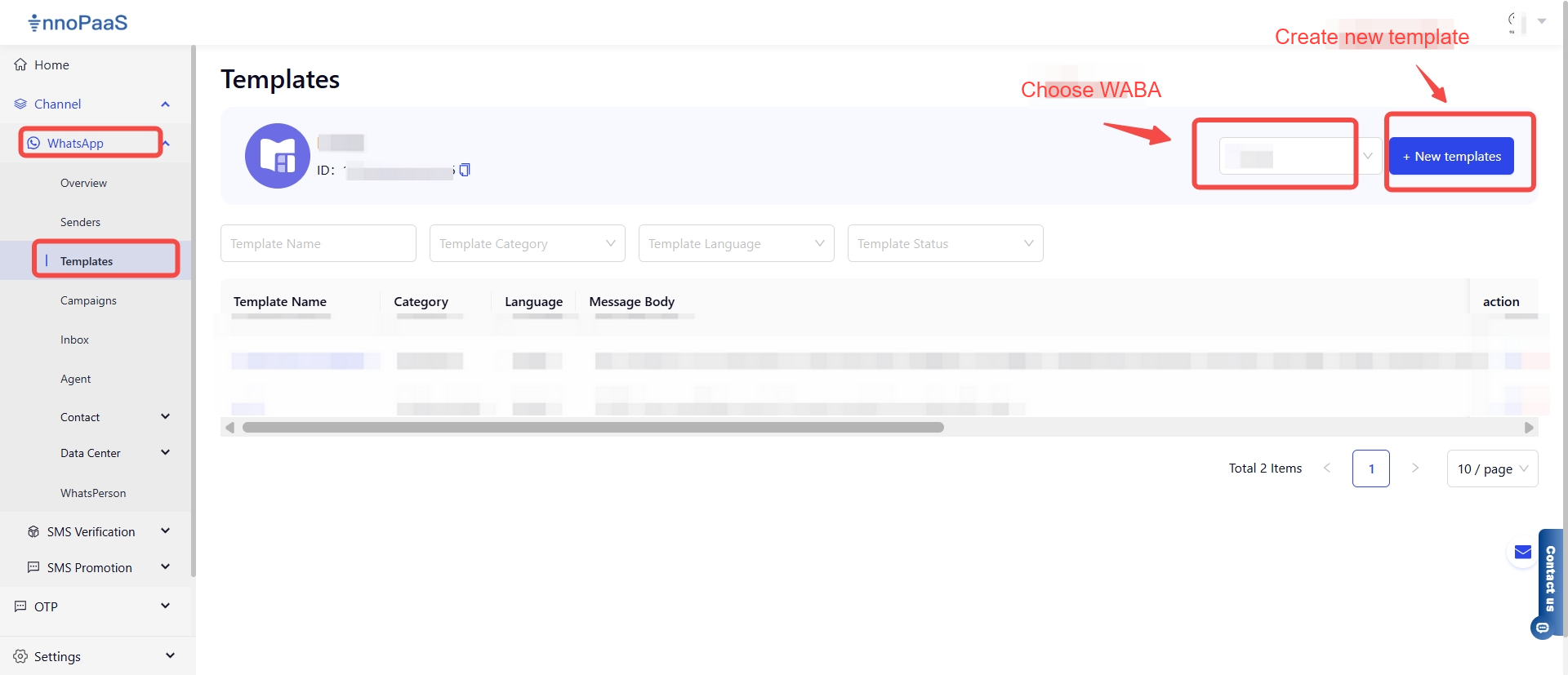
Select WhatsApp product, choose **"Templates"**. After entering this page, select which WABA you want to create the message template under, then click **"+ New templates".**
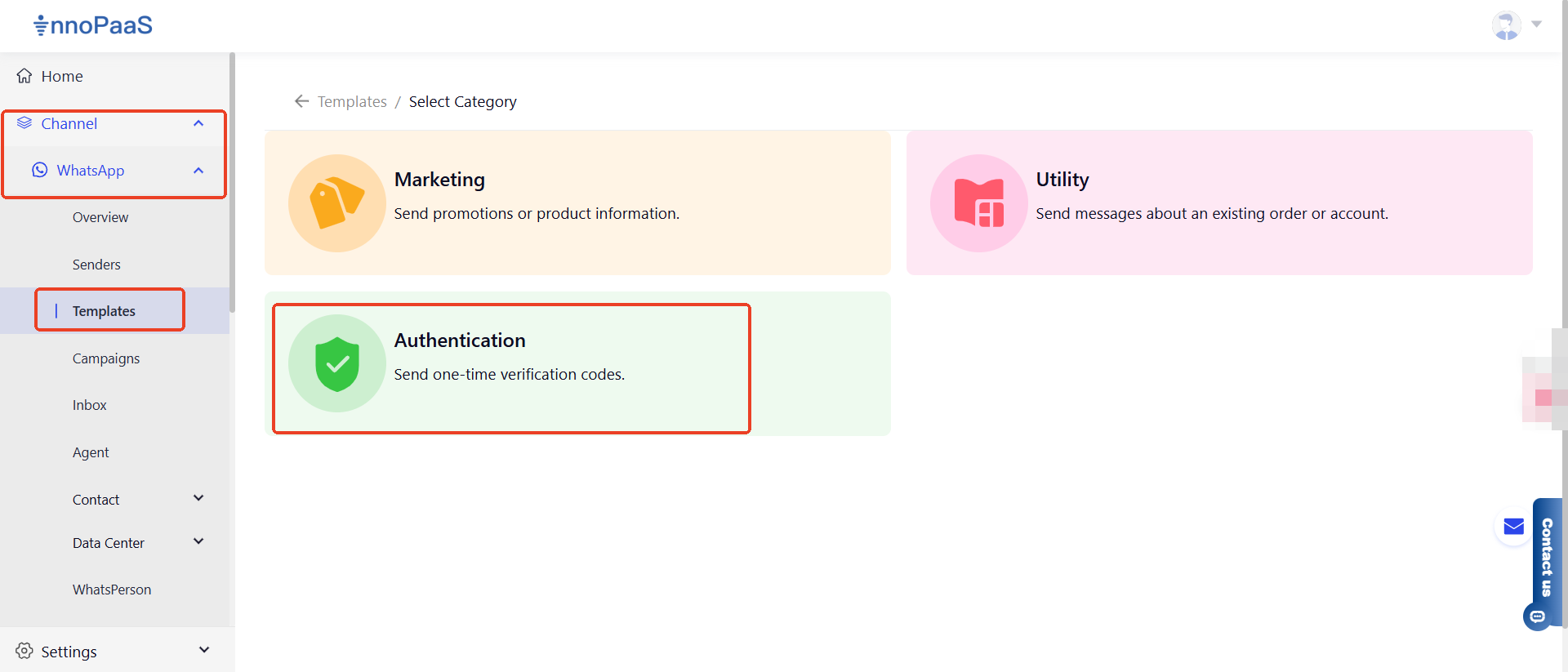
## 3. Choose Authentication template
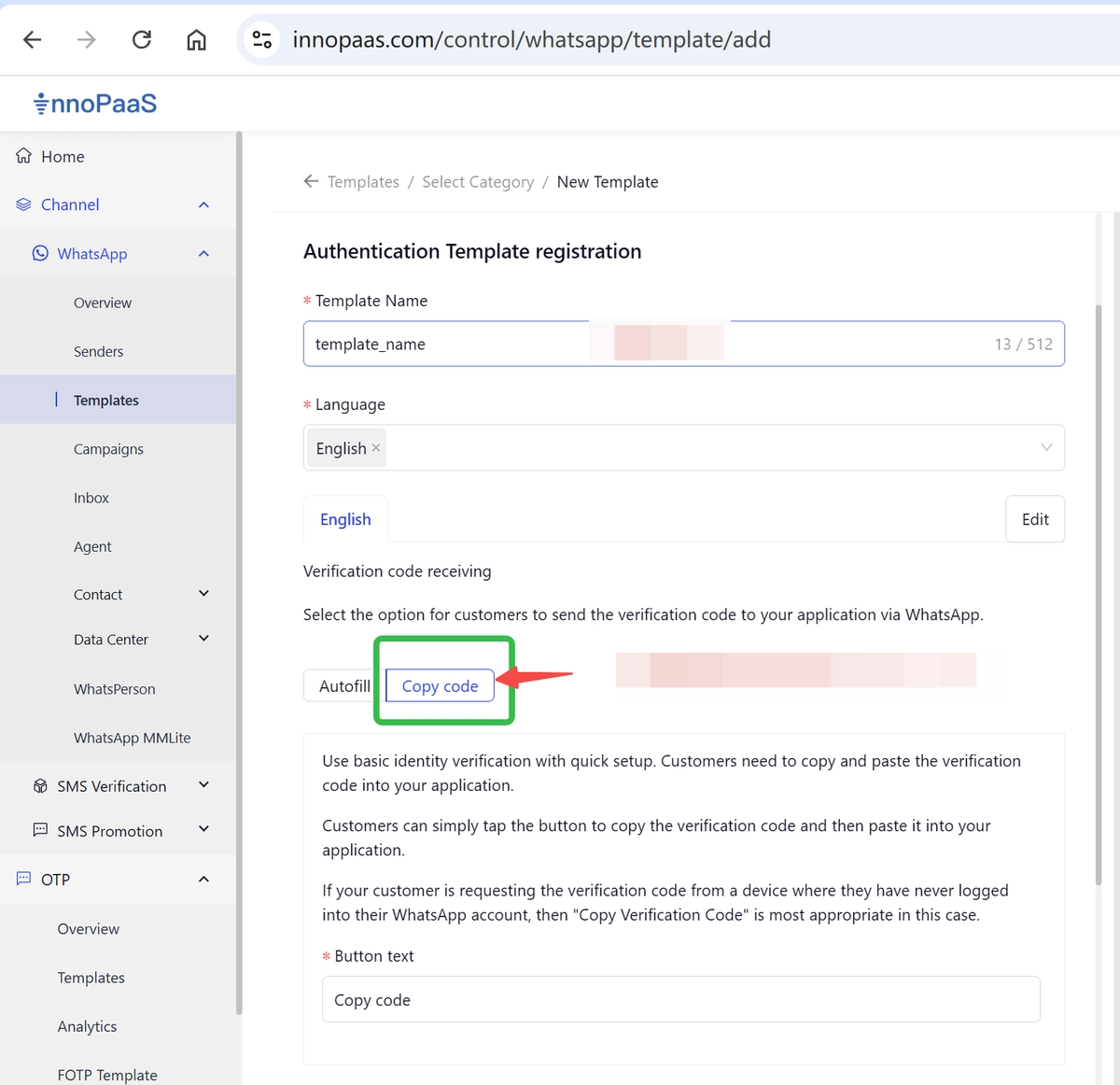
### 3.1 Standard template
Authentication templates are divided into Standard type and Autofill type, for the standard one follow the steps below:
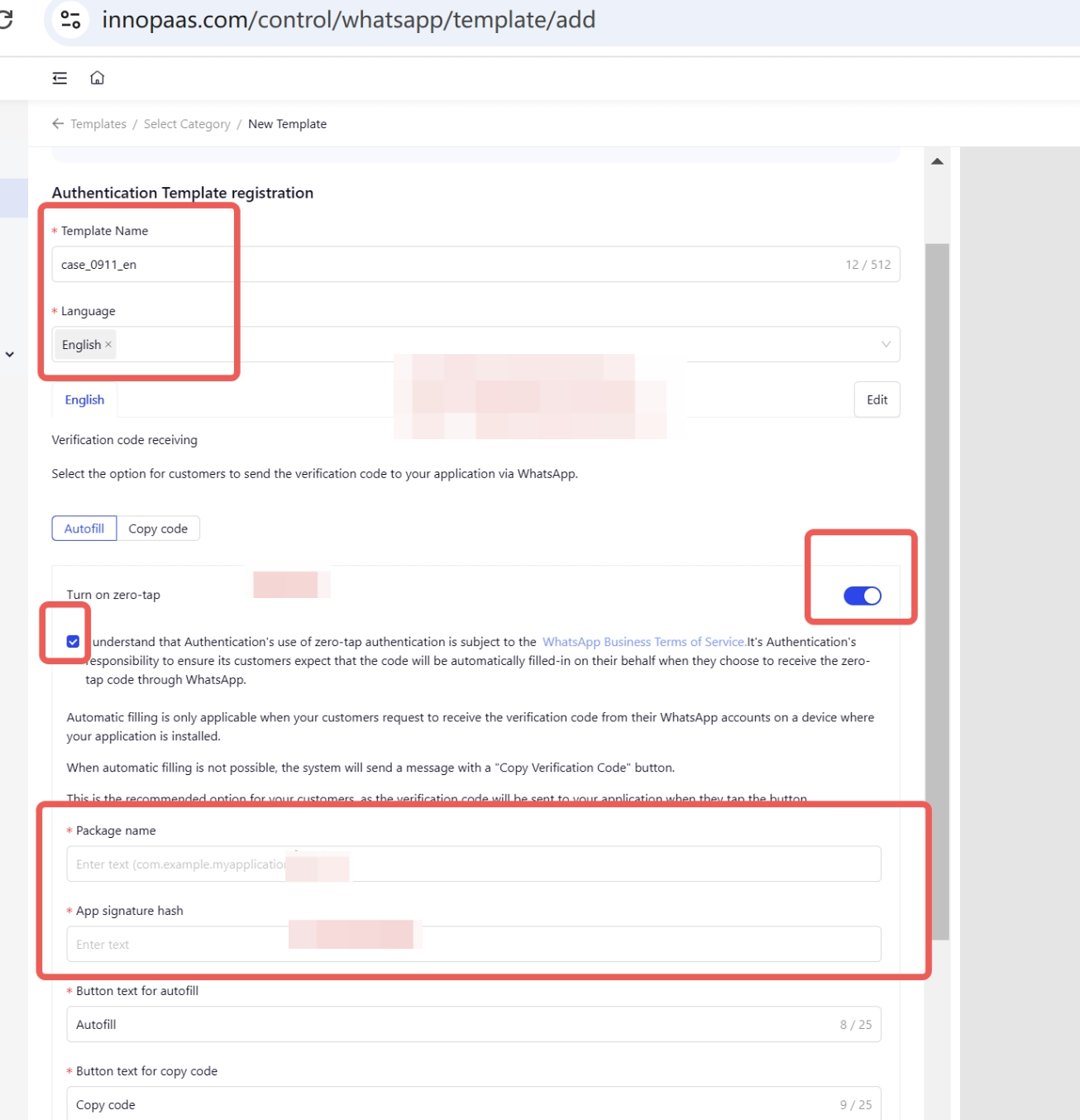
### 3.2 Autofill template
{% hint style="info" %}
By using an authentication template that includes a zero-tap one-click autofill feature, you can send a one-time password or verification code together with a one-click autofill button to users. When a WhatsApp user taps that autofill button, the WhatsApp client will trigger an activity that opens your app and sends the password or verification code to that app. Applications integrated with WhatsApp one-tap authentication will automatically capture this code, so the user does not need to switch to WhatsApp to copy the code. For details please read:
{% endhint %}