> For the complete documentation index, see [llms.txt](https://docs.innopaas.com/llms.txt). Markdown versions of documentation pages are available by appending `.md` to page URLs; this page is available as [Markdown](https://docs.innopaas.com/documentation/documentation-en/whatsapp-product/waba-senders-basics-and-management/business-verification.md).
# Business Verification
This section explains how to complete business verification in Business Manager.
{% hint style="info" %}
Before performing business verification, please make sure you have prepared the required [materials](/documentation/documentation-en/whatsapp-product/waba-senders-basics-and-management/pre-access-preparation-materials.md).
{% endhint %}
Business verification is a mandatory review process established by Meta to ensure platform safety and compliance. Its core purpose is to verify whether your BM account represents a real, legitimate company or organization. Completing this verification is the only official way to lift WhatsApp Business API feature restrictions and achieve scaled commercial messaging. Before verification is completed, your account will remain in a restricted "test" state.
The table below clearly explains the core differences in your WhatsApp Business API usage permissions before and after verification:
| Feature | Business not verified | Business verified |
| ----------------------------------------------------------------------------------------------------------------------------------------------------------------------------------- | ---------------------------- | -------------------------------------------------- |
| [Business-initiated conversations](/documentation/documentation-en/whatsapp-product/waba-senders-basics-and-management/phone-numbers-senders/messaging-limits.md) (within 24 hours) | Limited to 250 conversations | 2,000-10,000-100,000-unlimited (gradual increases) |
| Registered [phone number](/documentation/documentation-en/whatsapp-product/waba-senders-basics-and-management/phone-numbers-senders.md) cap | Up to 2 | Up to 20 (under the same BM) |
| [Official Business Account (OBA)](/documentation/documentation-en/whatsapp-product/waba-senders-basics-and-management/official-business-accounts-oba.md) | Not applicable to apply | Eligible to apply |
| Account reputation and trust | Basic level | Significantly improved, officially recognized |
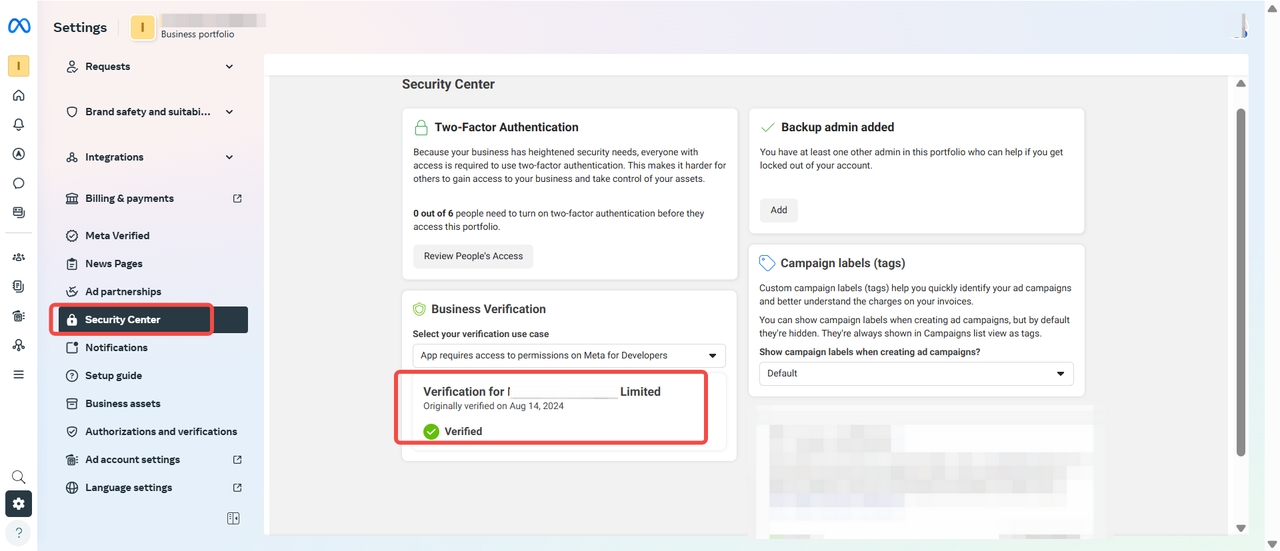
Verified business is as follows:
## 1. Start verification
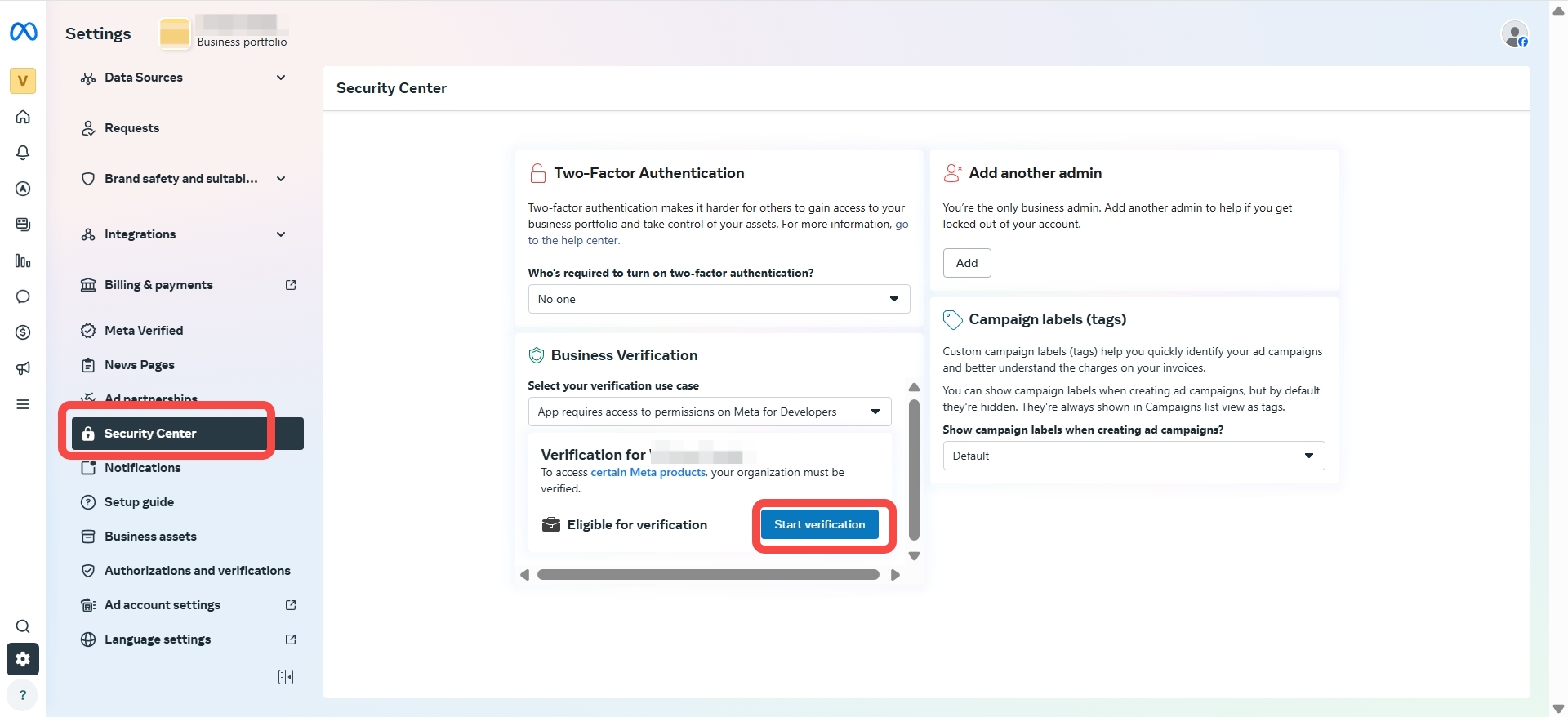
After [creating BM and WABA](/documentation/documentation-en/whatsapp-product/create-a-bm-and-waba.md), go to the "[Security Center](https://business.facebook.com/latest/settings/security_center?business_id=)" in Business Manager, then click "Start verification"
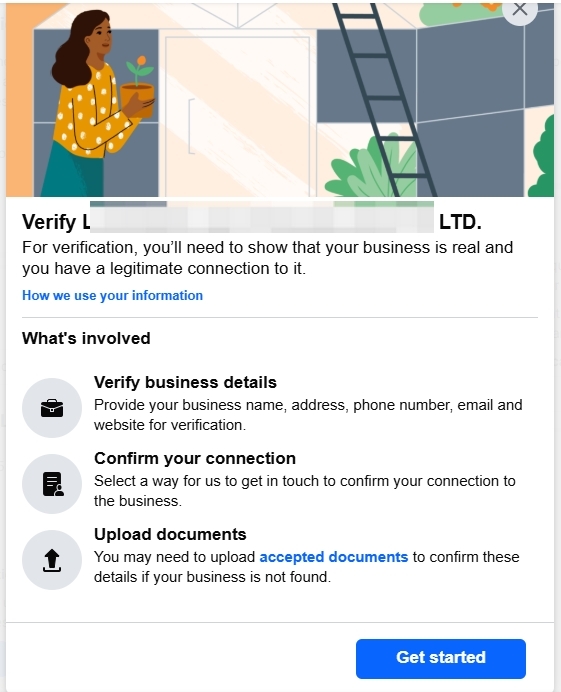
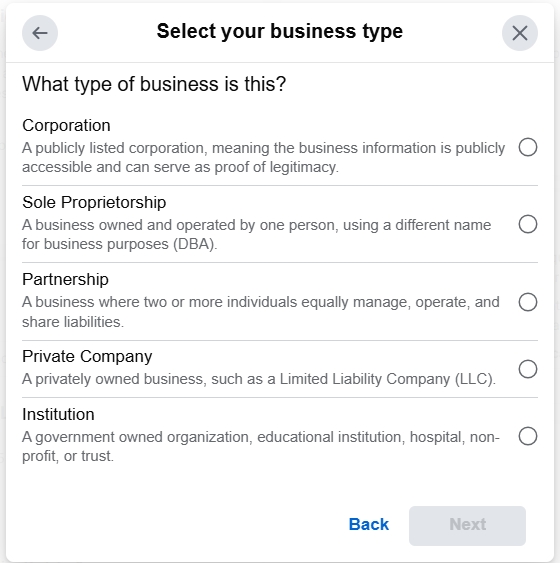
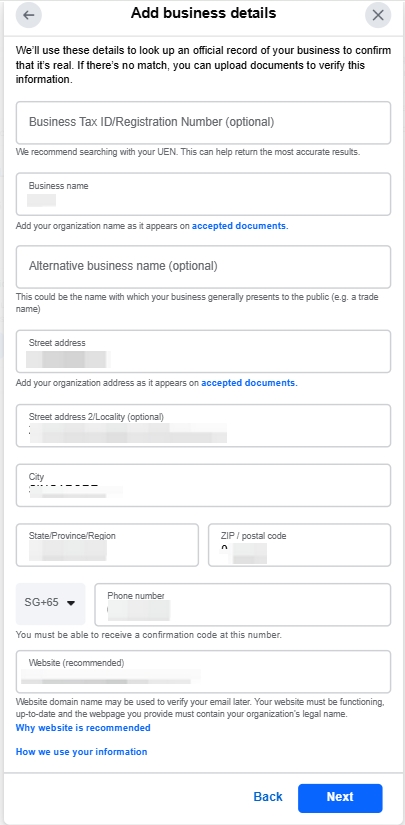
## 2. Provide company details
{% hint style="info" %}
The company name, address, and phone number you enter must exactly match the name, address, and phone number on the supporting documents.
The website you provide must contain the company name and address shown in the supporting documents.
{% endhint %}
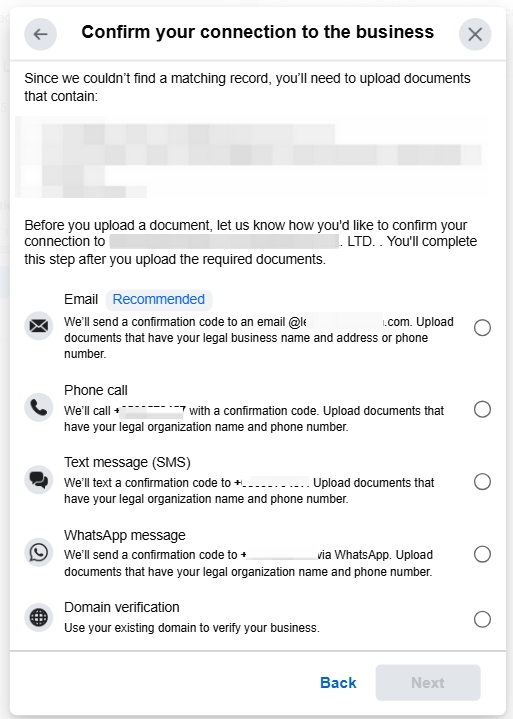
## 3. Choose a verification method
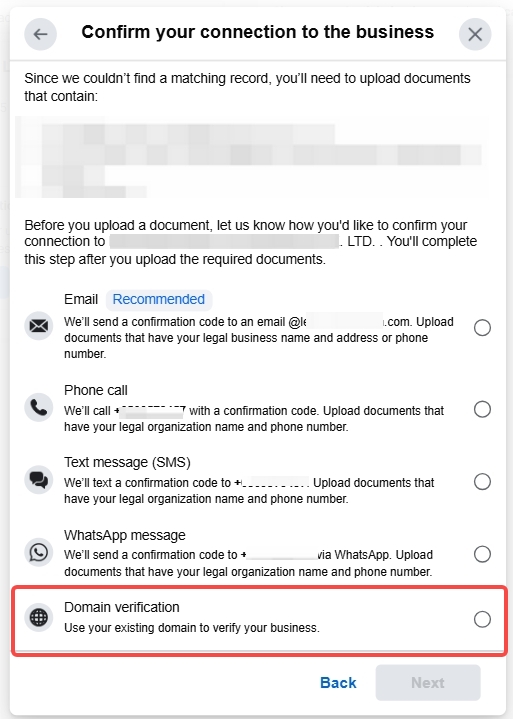
Choose a method to verify the company's association and authenticity. We recommend [email verification](#id-3.1-email-verification) and [domain verification](#id-3.2-domain-verification).
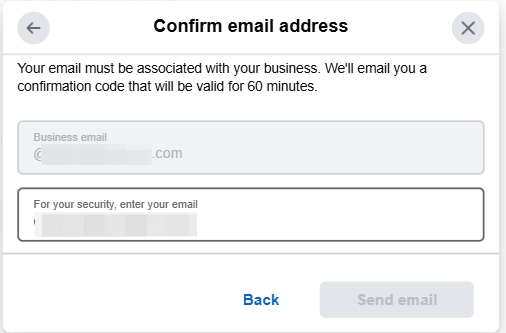
### 3.1 Email verification
If you choose email verification, you need to enter an email address that matches the domain of your company's website. For example: if the website is [www.dagongsi.com](http://www.dagongsi.com), the email should be
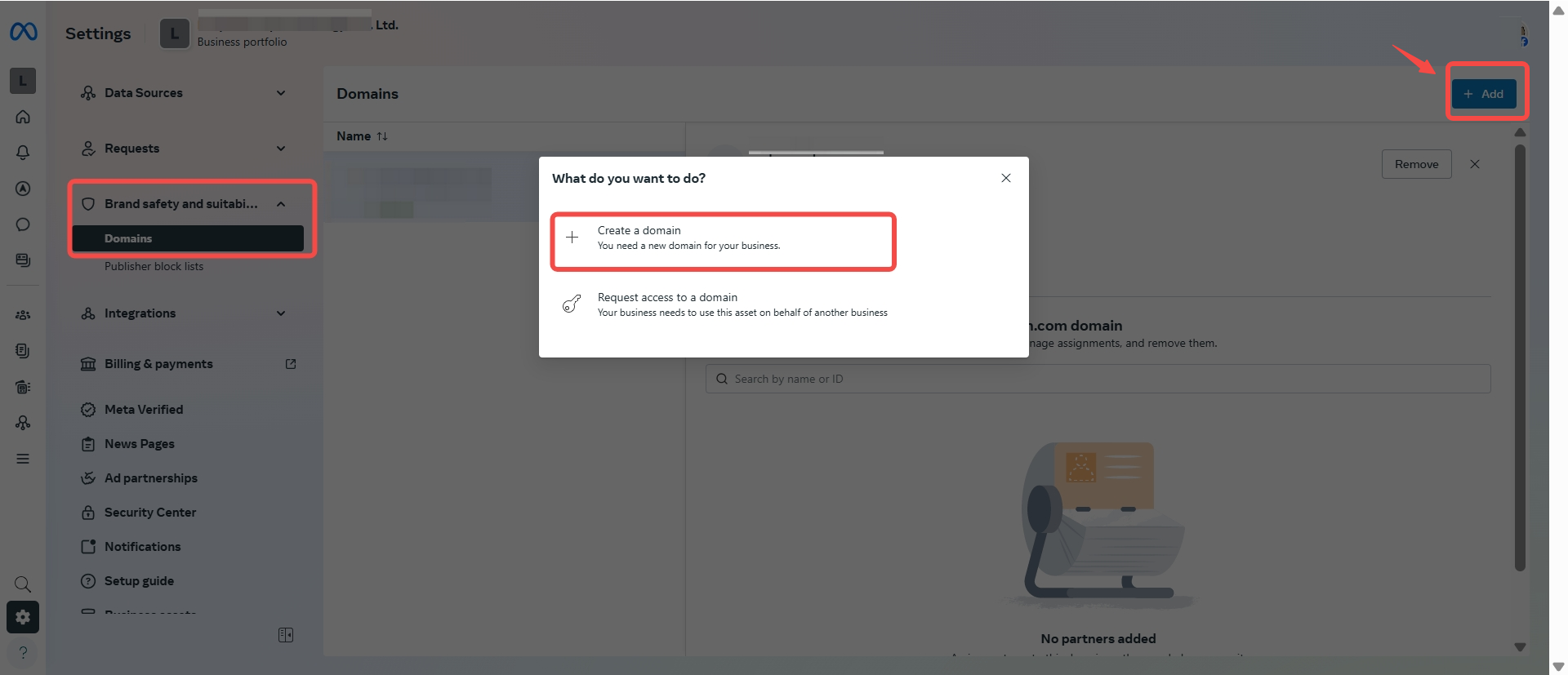
### 3.2 Domain verification
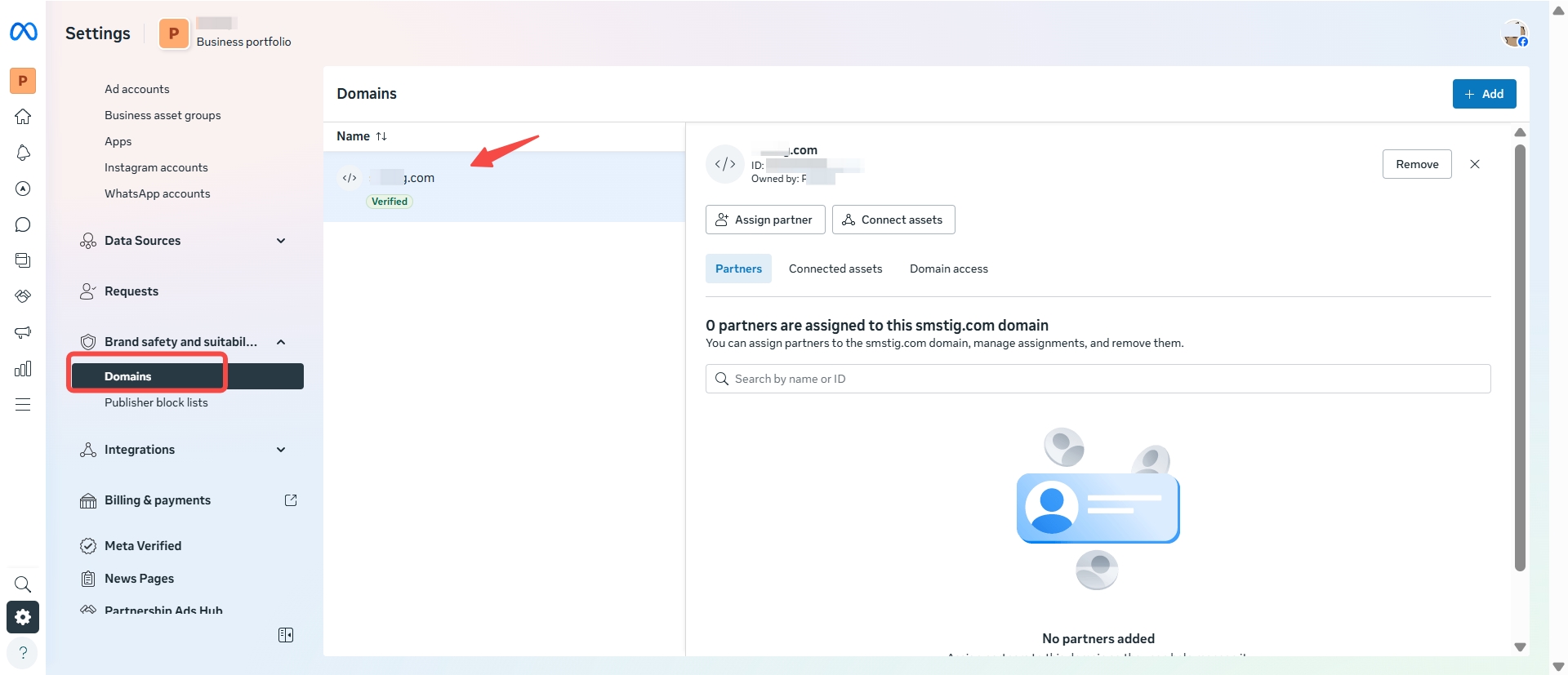
If you choose domain verification, there will be a prerequisite step. Go to the "[Domains](https://business.facebook.com/latest/settings/domains?business_id=)" page and add the domain, for example: innopaas.com
There are three ways to verify the domain; follow the instructions and choose one to complete this verification.
* Add a meta-tag
* Upload an HTML file to your root directory
* Update the DNS TXT record with your domain registrar
Verified domain is as follows:
Return to the Business verification page and select "Domain verification"
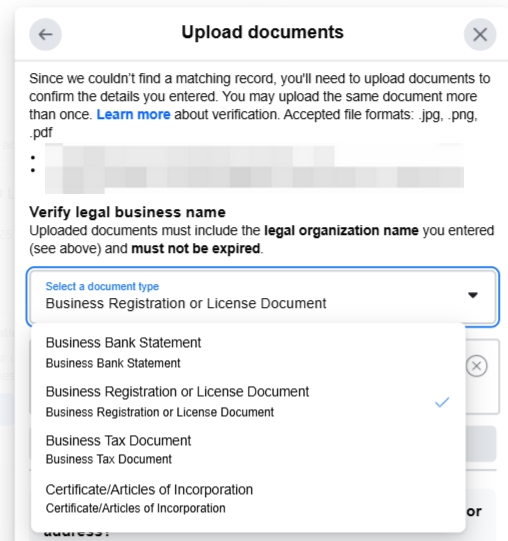
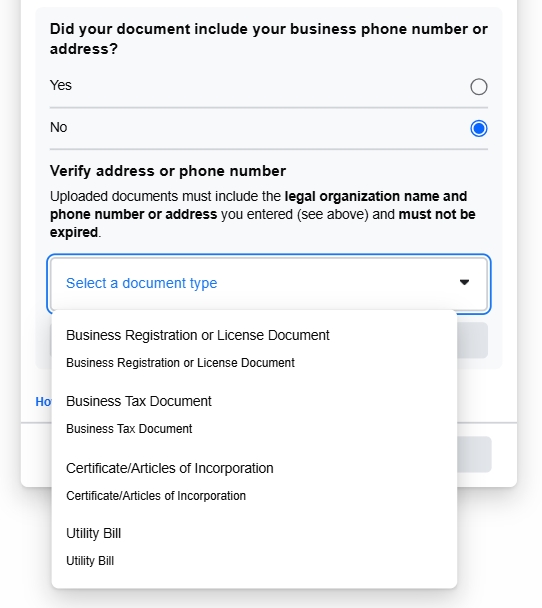
## 4. Upload supporting documents
The first document must show the company name and address, and it is best to also include a phone number that can receive verification codes.
The second document is required when the first document does not include the phone number and address. Note: the phone number on the document needs to receive verification codes.
## 5. Submission successful
After company information is submitted successfully, please wait patiently for the review. You will be notified once the review is complete.
Please note that Business verification is a process entirely reviewed and managed internally by Meta. As your business solution provider, InnoPaaS cannot directly intervene, query its specific status, or expedite the review. If you encounter issues after submission, we recommend first checking for possible reasons for failure according to [Meta's official guidance](https://www.facebook.com/business/help/2342133782492969?id=180505742745347). At the same time, we are happy to provide relevant experience and suggestions; please feel free to [contact us](/documentation/documentation-en/help-and-support/innopaas-team.md).
## 6. Difference between business verification and OBA certification
Business verification proves "who you are," while [Official Business Account (OBA)](/documentation/documentation-en/whatsapp-product/waba-senders-basics-and-management/official-business-accounts-oba.md) certification proves "you are well-known" (the brand has broad public recognition). OBA certification also requires an application.